Work / SimplAI
One Canvas, 130 Steps
Designing the visual Tool Builder at the centre of SimplAI's agentic AI platform
SimplAI lets enterprise teams build AI agents. Agents are only as capable as the tools you give them. And building a tool meant chaining together language models, Python, document parsers, database queries and sixty-odd SaaS connectors into something that runs reliably in production.
That job belonged to engineers. My brief was to hand it to the people who actually understand the process being automated.
- Role
- Lead Product Designer — end-to-end ownership
- Platform
- Web app, desktop-first, enterprise
- What I did
- Research · IA · Interaction design · Visual design · Design system · Handoff
The problem
Every enterprise AI project stalls in the same place.
Not at the model. At the plumbing.
A team wants an agent that reads a contract, pulls out the variable fields, and drafts a version for a new client. Conceptually that's three steps. In practice it's a PDF parser, two carefully-worded model calls, a JSON schema, variable passing between each stage, and a decision about what happens when the PDF is a scan instead of a text layer.
Every one of those pieces existed inside SimplAI already. More than 130 of them: language models, vision models, Python execution, OCR, web scraping, SQL against four different databases, guardrail validators, and roughly sixty SaaS connectors. All of it reachable through an API.
None of it reachable by the operations lead who actually knew what the contract workflow was supposed to do.
So the work queued behind engineering.
The design question
How do you let someone who has never written a line of code assemble production AI workflows out of 130 unfamiliar parts — without either hiding the complexity that matters or drowning them in the complexity that doesn't?
Who I was designing for
Three people kept showing up in the work:
- The operations lead
- Knows the process cold. Has never seen a JSON schema. Wants to describe the workflow and have it run. Will abandon the product the first time something fails silently.
- The solutions engineer
- Builds for customers under time pressure. Lives in the product all day. Wants speed, keyboard reach, and the ability to drop to code when the visual layer runs out.
- The platform owner
- Signs the contract. Doesn't build anything. Needs to know what's running, what it costs, and what happens when it goes wrong.
Those three want different things from the same screen. Most of the hard decisions below are about refusing to pick just one of them.
Constraints I designed against
Worth stating plainly, because they shaped everything after.
- The catalogue was fixed and growing. I could not reduce 130 steps to a friendly dozen. New steps shipped every sprint. Whatever I designed had to absorb them without a redesign.
- Output had to be production-grade. This wasn't a prototyping toy. A tool built here gets versioned, deployed, monitored and billed. Design decisions had runtime consequences.
- Two audiences, one canvas. No "simple mode" and "advanced mode."
- It had to sit inside the existing platform. Agents, voice agents and tools already shared a lifecycle and a visual language. The builder had to feel like the same product, not a bolted-on editor.
Five decisions that made the product
I gave the tool a contract, not just a flow
Most workflow builders start with a blank canvas and a plus button. I started one level up: what is a tool, from the outside?
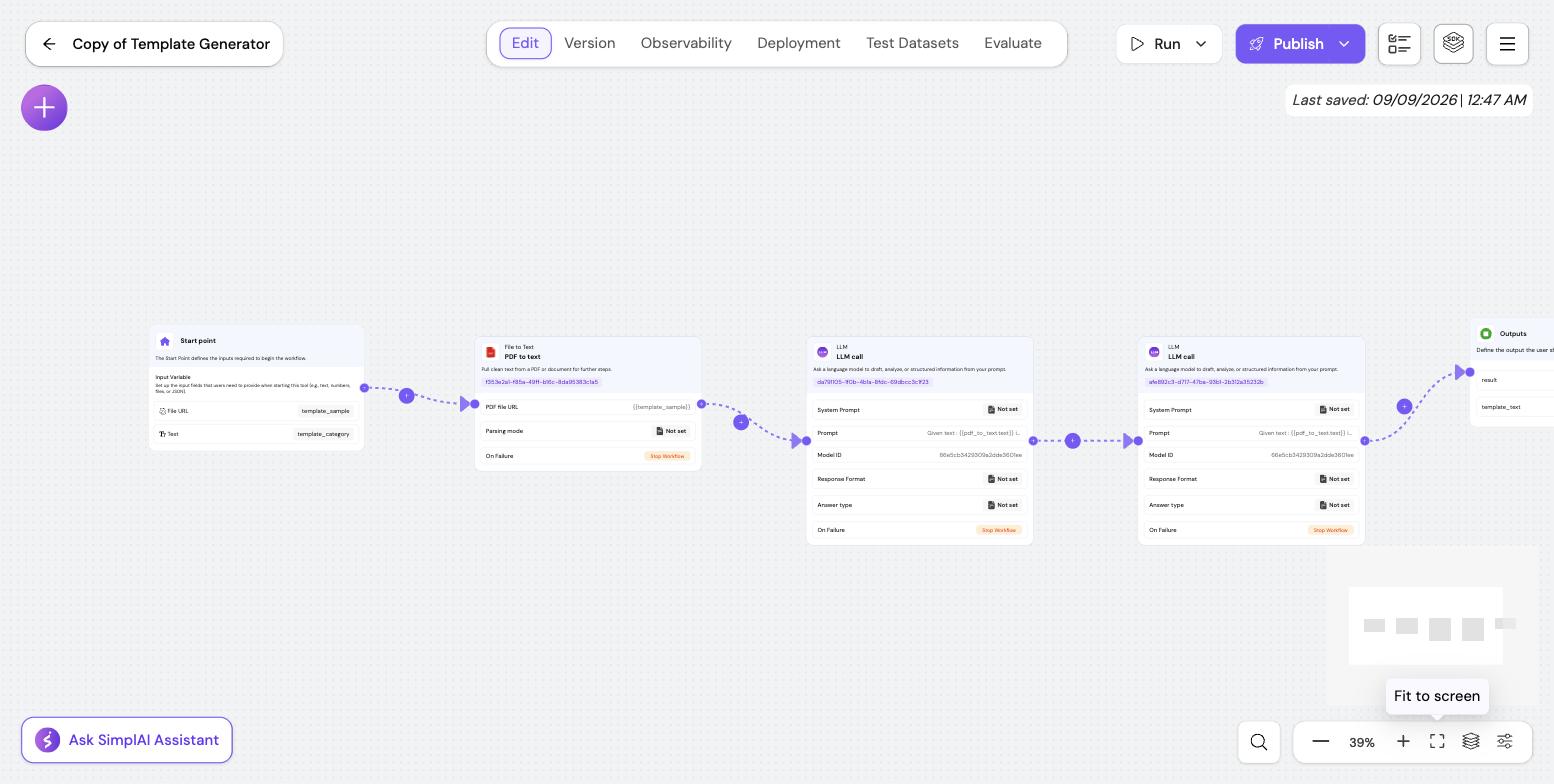
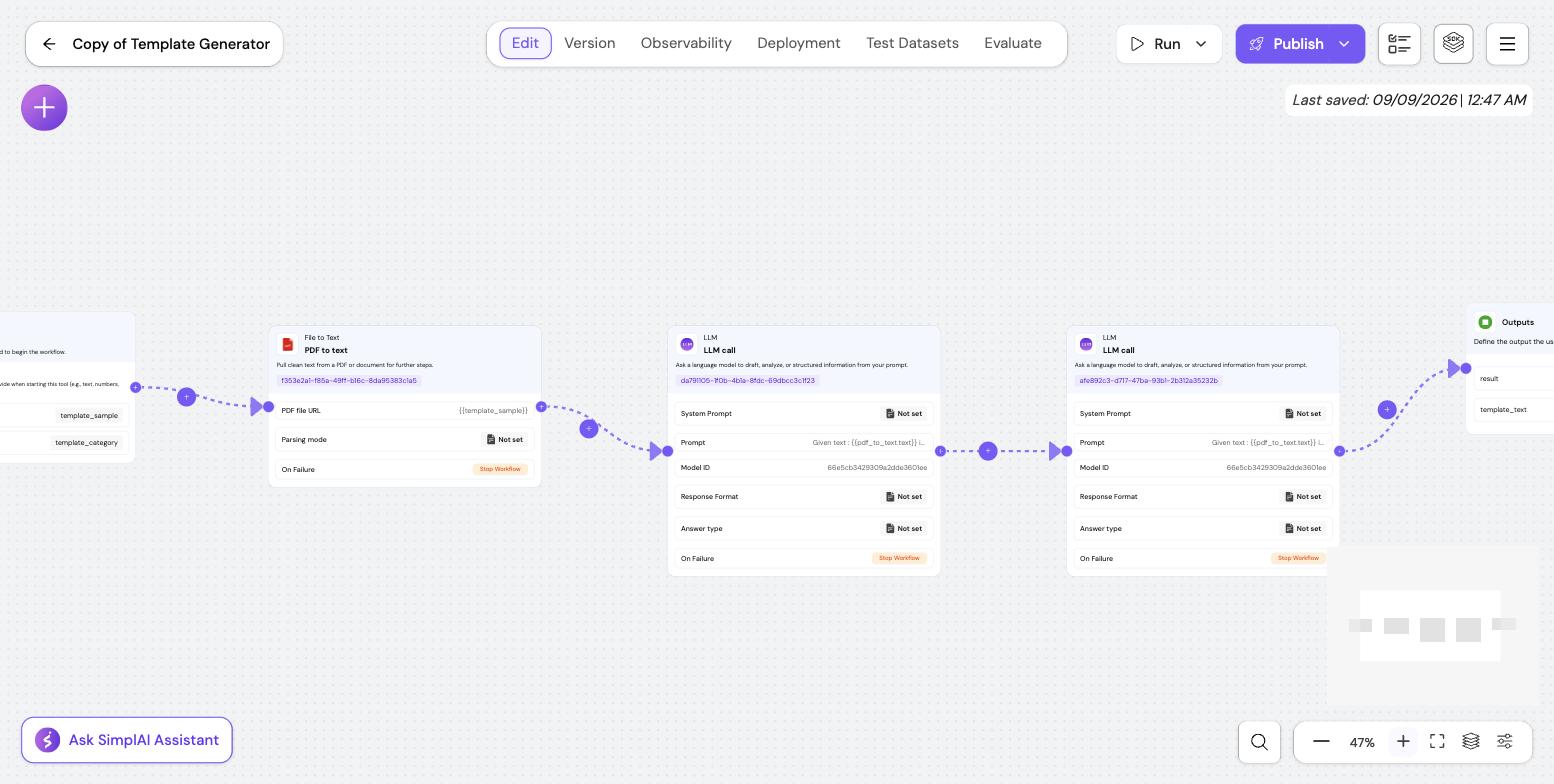
The answer is a function. It takes named inputs and returns named outputs, and everything in between is implementation detail. So I made that literal on the canvas. Every tool opens with a Start point node holding its declared input variables, and closes with an Outputs node mapping results to named fields.
They are real nodes. You can see them, click them, and read the tool's interface without understanding a single step in the middle.
The trade-off
Two nodes of canvas real estate spent on something that isn't a processing step, and a small amount of ceremony added to the simplest possible tool. I took it, because those two nodes are what let an agent, another tool, or an API call consume this thing later without anyone reading its guts.
I put failure on the face of every node
This is the decision I'd defend hardest.
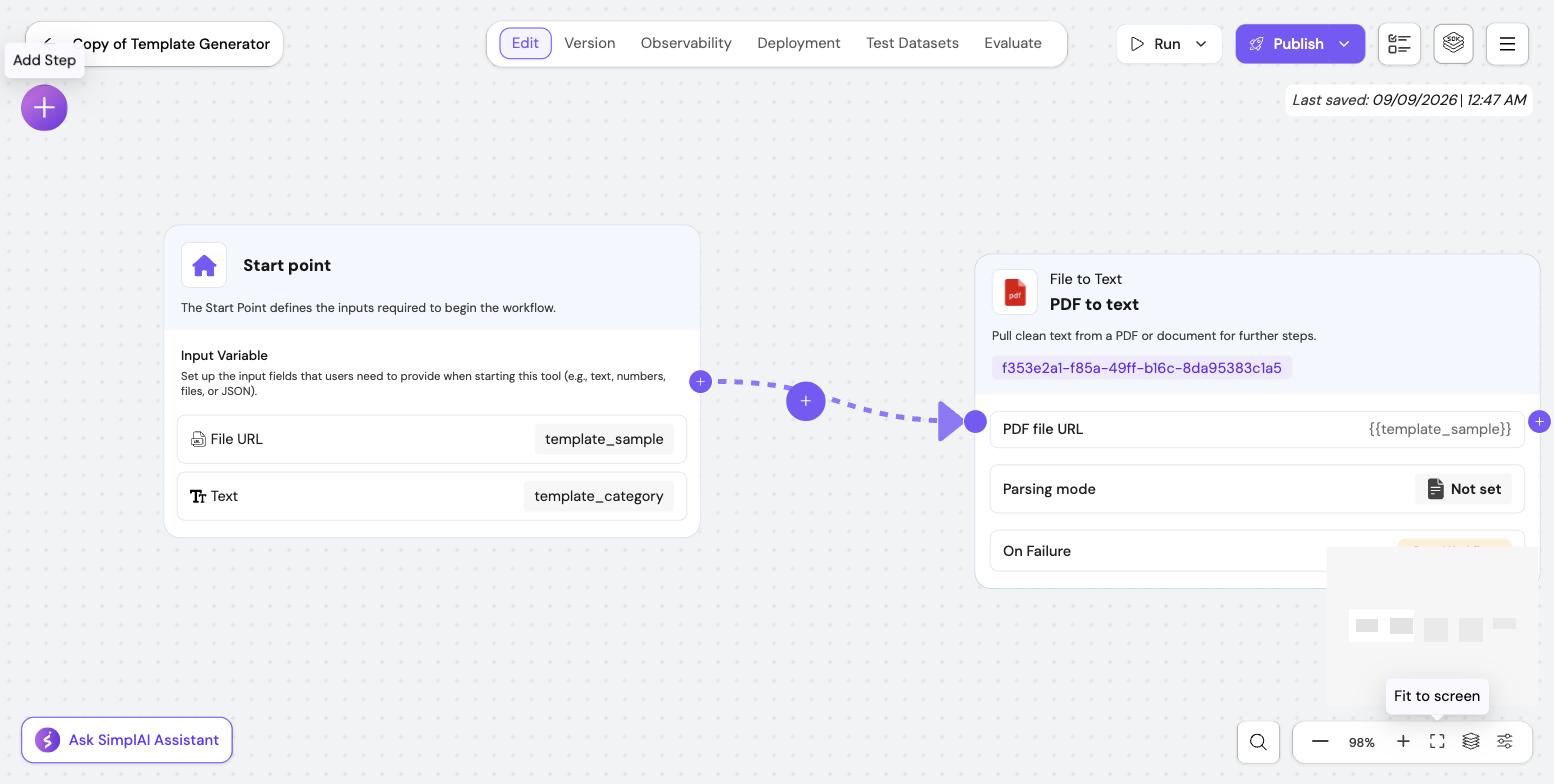
Workflow tools normally treat error handling as a setting. Buried in a properties panel, off by default, discovered after something breaks at 2am. On a canvas where each node is a network call to a model or a third-party API, that's not a detail. Failure is the normal case often enough to design for.
So On Failure sits as a visible row on every node face, next to the parameters, showing its current value: Stop Workflow by default. You cannot build a pipeline without seeing, on every step, what happens when that step fails.
The trade-off
It makes nodes taller and the canvas denser, and it puts a slightly frightening word in front of a first-time user on their very first step. I decided that a builder who is mildly worried about failure on day one is far cheaper than a customer whose production agent dies silently in week six.
What I rejected
A summary error-handling panel for the whole tool. Cleaner canvas, but it moves the decision away from the step it belongs to, and it makes per-step policy feel like an advanced feature rather than the default it needed to be.
I solved 130 steps with recency, not taxonomy
The obvious answer to a big catalogue is a good taxonomy. I built one: 25 categories, from AI & Reasoning through Databases & SQL to Guardrails.
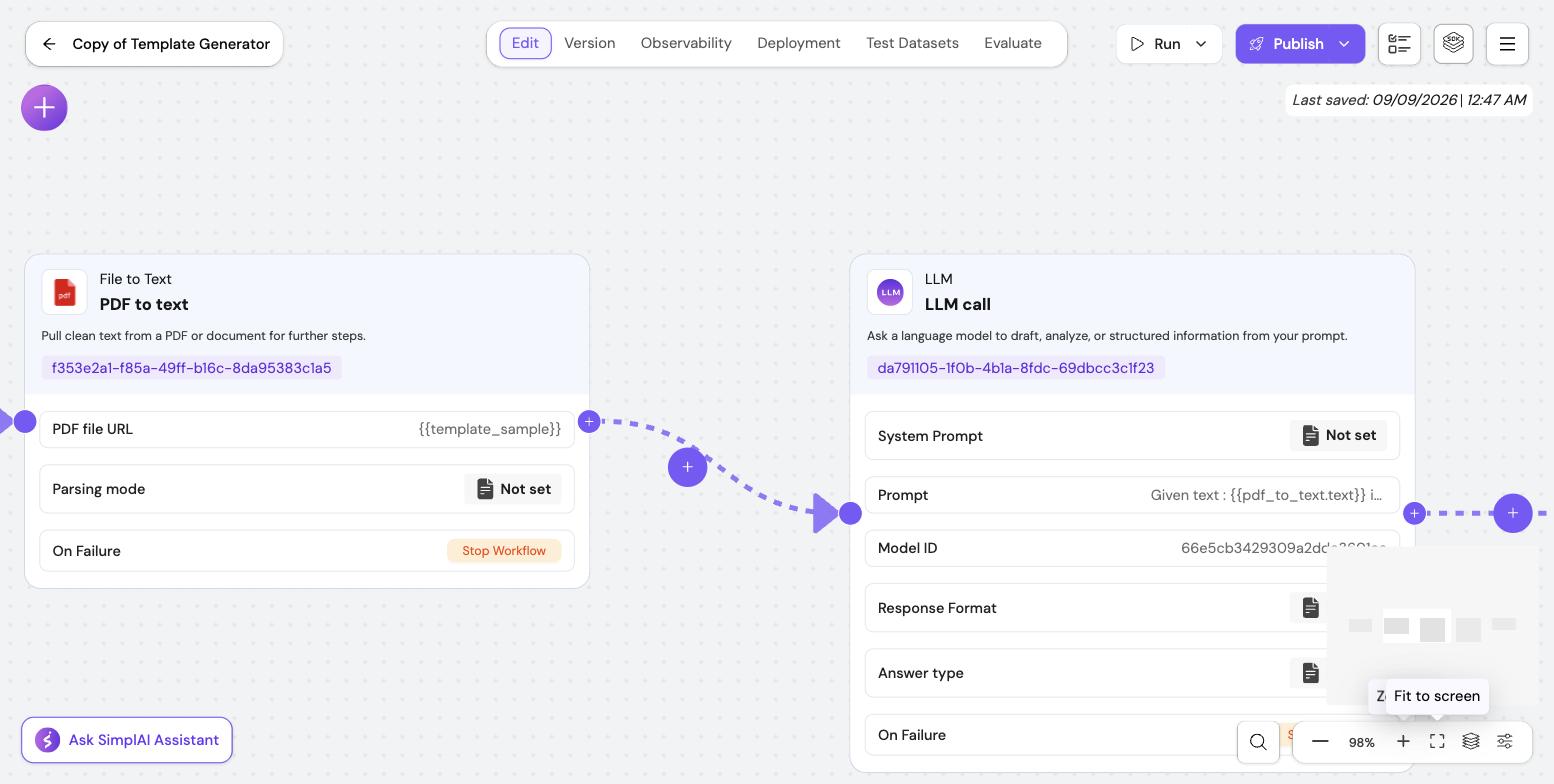
Then I watched how people actually reach for steps, and the distribution was brutally uneven. Seven steps carry most of what anyone builds: LLM, Python Code, File to Text, Google Search, LLM Vision, Image Generation, and the voice call agent.
So the palette leads with Frequently Used: those seven, expanded, above everything else. The 25 categories sit underneath for the long tail. Search sits above both. And four source tabs (Pre-defined steps, Tools, Agents, MCP Server) let you pull in your own tools, other agents, or an external MCP server without leaving the panel.
The trade-off
A curated shortlist is an opinion, and opinions age. It needs maintaining as the catalogue grows. But a perfectly organised list of 130 things that all feel equally likely is a worse first-run experience than seven good guesses.
I made the middle of a pipeline editable
Early workflow builders let you append. You add step four after step three, and if you need something between two and three you rebuild.
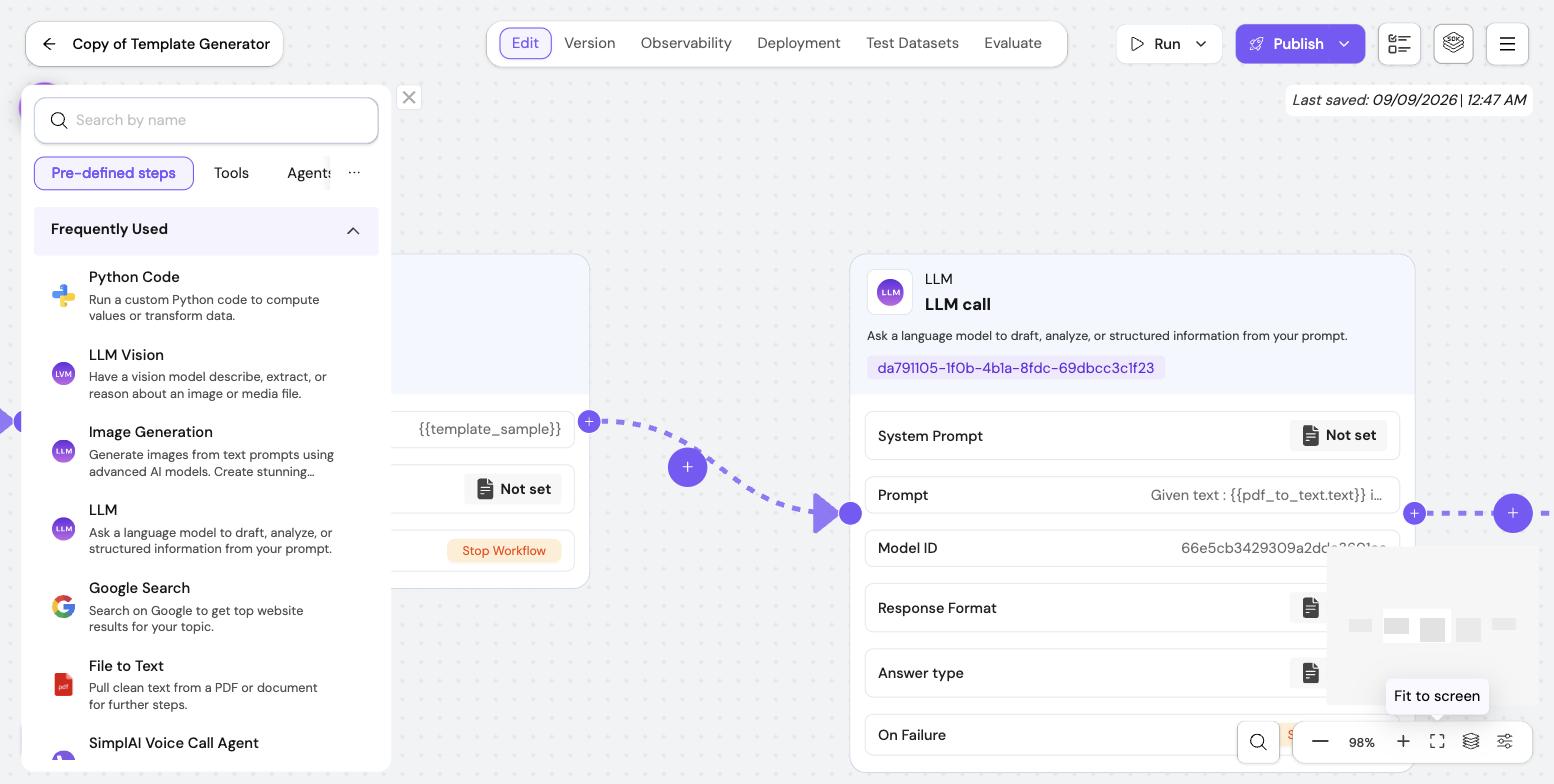
Real building isn't linear. You get a pipeline working, run it, and discover the model needs the document cleaned up before it sees it. So every connector on the canvas carries its own insert affordance. Hover an edge, click the +, and a new step drops in with the connections rewired for you.
The same principle drove the node hover toolbar: duplicate, run this single step, delete. Running one step in isolation is the debugging move people actually need, and it was worth the extra control.
The trade-off
More interactive targets on a canvas that already has drag, pan, zoom and selection competing for the same pixels. Every one of them had to be quiet until you approach it.
I treated a tool as a product, not a file
The canvas is one tab. Behind it sits the same six-part lifecycle every buildable object in SimplAI carries: Edit · Version · Observability · Deployment · Test Datasets · Evaluate.
Build it. Cut a version. Watch what it does in production: runs, reliability, latency, cost in credits, tokens, tool-call latency. Ship it to a channel. Test it against a fixed dataset before release. Grade it continuously against live traces afterwards.
I extended that spine from agents onto tools deliberately. The point is that someone who has learned one object in SimplAI has learned all of them, and a tool built on a Tuesday afternoon is subject to the same release discipline as anything else in the platform.
The trade-off
It's heavy chrome for someone who just wants a two-step utility. Five of those six tabs are irrelevant on day one. I accepted the weight anyway. The alternative is a lightweight editor that later needs a separate "promote to production" path, and that's a migration problem you only get to solve once, badly.
The smaller craft
The things that don't get their own headline but decide whether people stay.
- Node anatomy
- Each node carries a type badge, its name, a one-line description of what the step does, its ID, and its parameters with live values inline. Unset parameters say
Not setrather than sitting blank. An empty field reads as "fine". ANot setchip reads as "you're not done." - Variables as objects
- References like
{{pdf_to_text.text}}render as chips, not raw text, so the data flowing between steps is visible on the canvas rather than hidden inside a config panel. - Legible at any zoom
- The node is designed to degrade gracefully: at 100% you read every parameter, at 57% you read the step names and the shape of the flow, at 35% you read the architecture. Three different jobs, one component.
- Autosave that says what it means
- The canvas moves from a timestamp (Last saved 11:33 PM) to Draft Saved as you work. Two states, both honest, neither demanding attention.
- Help where you get stuck, not where you arrive
- Instead of a tutorial overlay on load, there's a persistent Ask SimplAI Assistant in the corner and a pinned welcome card you can dismiss. People get stuck in the middle of building, not at the start.
The system underneath
The Tool Builder isn't a standalone feature. It shares a system with agents, voice agents and everything else in the platform, and a few of those patterns started here.
- Explainer cards over radio buttons. Any choice that's architectural rather than cosmetic is presented as a card with a plain-language "when to use this" line. It's why Harness vs Planning orchestration, or Document–Search vs Graph KB, are decisions a PM can make.
- Config stacks. One card per concern, an info tooltip on each, and empty-state copy that doubles as documentation: "Add published skills your agents can share."
- Progressive disclosure as the default posture. Default versus Custom. "Show advance filters." Guardrails that expand into their parameters only once selected.
- Dependency-aware gating. Deployment stays locked until a version is published, and the empty state names the exact screen and button that unlocks it.
What it made possible
A tool has a visible contract. The Start point and Outputs nodes mean an agent, another tool or an API can use a tool without anyone reading its insides.
Failure is a build-time decision, not a production surprise. Every step shows its On Failure policy on the node itself.
The catalogue can keep growing. Search, the Frequently Used shortlist and 25 categories absorb new steps without a redesign.
The canvas became the surface the AI copilot builds on. Build with AI works inside this same builder, not a preview of it.
What I'd do differently
- The Frequently Used shortlist is hand-curated. It should be usage-driven per workspace, so a finance team and a support team see different first choices.
- The six-tab lifecycle is right for a production tool and heavy for a first one. A progressive reveal, with tabs appearing as they become relevant, would keep the discipline without the day-one weight.